


Docker for Playwright: Containerizing The Automation Framework
- Anuradha Agarwal
- 3 days ago
- 12 min read

Updated: 2 days ago
Joining partway through? This is Post 9 of Phase 3: Enterprise Scalability, part of my Playwright Automation Testing Udemy course.
Post 1, Scale Test Automation, lays out what this series is about.
Post 2, Getting Your Playwright Framework Running, gets the Playwright framework running on your own machine.
Post 3, Running in Parallel for the First Time, is where a single shared login collides with itself the moment you turn workers up from one to four.
Post 4, Designing and Building Concurrency-Safe Authentication built three classes: IdentityProvider, AuthenticationManager, WorkerResolver.
Post 5, Worker Scope, the Fixture, and Closing Out Concurrency wired those classes in, identity isolation closed and proven.
Post 6, Verifying Test Data Isolation checked whether that was enough, a confirmed gap turned up in checkout.
Post 7, Cross-Browser Automation extended the same identity pool to Firefox and WebKit.
Post 8, Introducing Sharding took the framework to GitHub Actions, then split the suite across two runners. Sharding solved a speed problem.
This post solves a different one:
the same suite behaving slightly differently depending on which machine happens to run it.
Why this shows up, and why it's not a testing problem
A Playwright test isn't just a Node script; it's a Node script that also drives a real browser, and that second part brings in several things that all need to be correct at once, not just Node itself.
Four separate things can each drift independently, on any given machine:
Node's own version, the Playwright package version, the browser binaries Playwright downloads, which have to match that Playwright version exactly, and the OS-level system libraries and fonts the browser needs just to launch at all.
Every computer running this suite, your laptop, a teammate's laptop, a GitHub-hosted runner, an on-prem Jenkins machine a company might already be using, can quietly end up with a slightly different combination of these four things. Most days that difference does nothing visible. Then one day a test fails on your machine but passes in CI, or the other way around, and hours get spent debugging a test that was never actually broken, it was just running on a computer set up a little differently from wherever it last worked.

Docker's answer is to stop asking every machine to assemble the right environment itself. Build it once, package it, and every machine that runs the container gets the identical thing, not a close approximation of it.

What a container actually is, for anyone new to this
A container is a running instance of an image. An image is a frozen, layered snapshot of a filesystem, an OS base, whatever gets installed on top of it, your code, built once from a recipe called a Dockerfile.
Running the container doesn't reinstall anything; it starts from that exact frozen snapshot every time, which is the whole point: nothing to drift.

A Dockerfile is that recipe: a short, ordered list of instructions- start from this base, copy these files in, run this install command, set this as the default command to run.

One thing this recipe doesn't do on its own: it doesn't watch the project for changes. The image is a frozen snapshot, taken at the moment docker build runs, so any change to the framework after that- a new dependency added to package.json, an updated test file, a code change anywhere in the repo- isn't inside the image until it's rebuilt. docker run alone never picks up new changes; it just starts another container from whatever snapshot already exists. The rule is simple:
change anything in the project, rebuild the image before running it again:
docker build -t qa-cart-tests Each instruction in that list becomes its own layer, and Docker saves every layer separately once it's been built, stacked on top of each other in order, the same order they appear in the file. Docker caches layers it hasn't seen change, which is why a rebuild after only touching test files is fast; the expensive steps, installing Node, installing every browser's dependencies, don't repeat.

One thing this setup does not do: it doesn't put qa-cart.com inside the container. The container holds Node, the three browsers, and this framework's own code- everything the test suite needs to run. qa-cart.com stays exactly where it's been since Post 2, a real website, hosted on its own infrastructure, out on the internet. The browsers running inside the container reach out over the network to visit qa-cart.com, the same way a browser on your own laptop would; they're just doing it from inside a small, self-contained system instead of from your machine directly.

Before any of this works, Docker itself has to be running
Before any of this works, Docker itself has to be running
If Docker isn't installed yet, that's step zero; everything after it assumes this is already done.
Step 0: install Docker Desktop, if it isn't already on the machine:
Download it directly from docker.com/products/docker-desktop, pick the right build for your operating system (Mac: Apple Silicon or Intel, matching the chip; Windows; or Linux).
Install it the same way as any other application, then open it once so it finishes its first-run setup. That first launch is what actually creates the engine the rest of this section checks for; a fresh install with the app never opened yet won't respond to docker ps correctly.
Once it's installed and has been opened at least once, the sequence below is what to work through, in order, every time after that, since each step confirms something the next one depends on.
Step 1: check whether Docker is genuinely ready:
docker ps
Don't trust docker --version for this, it only confirms the CLI tool exists, it says nothing about whether the engine behind it is up.
docker ps is the check that matters.
An empty table with column headers means Docker is ready.
A connection error, something like failed to connect to the docker API at unix:///.../docker.sock, means the engine isn't running yet, even if Docker Desktop's window is open.
Step 2, if it's not ready, open Docker Desktop and wait, don't proceed yet:
Open the app, then watch the whale icon in the menu bar. Don't run anything until it stops animating and settles into its steady state, that's the signal the engine has finished starting, not just the window appearing. Re-run docker ps once it settles.
Step 3, if docker ps still fails after that, or Docker Desktop seems stuck, check for orphaned processes:
pgrep -fl docker
If this shows the dashboard app running but no backend processes (com.docker.backend, com.docker.build), the two have gotten disconnected from each other, a broken half-alive state that a plain relaunch won't fix on its own.
Step 4, quit cleanly, then relaunch the whole stack together:
osascript -e 'quit app "Docker"'Confirm it actually exited:
pgrep -fl dockerYou should see nothing left except com.docker.vmnetd, a privileged system helper that's meant to stay running between sessions, safe to ignore. Then relaunch:
bash
open -a DockerWatch the whale icon settle again, then confirm with docker ps before trying docker build.
This entire sequence is local-machine-only.
GitHub Actions' hosted runners already ship with Docker installed and running, docker build in a workflow just works, none of these four steps have an equivalent in CI. Everything above only matters on your own machine.
In an enterprise setting, this is a solved onboarding step, not something each engineer works through from scratch. Docker Desktop's free tier doesn't cover larger companies; a paid Docker Business subscription is required,
Building the image for this framework
Create this file: Dockerfile, at the repository root.
dockerfile
FROM mcr.microsoft.com/playwright:v1.61.0-noble

WORKDIR /app

COPY package*.json ./
RUN npm ci

COPY . .

ENTRYPOINT ["npx", "playwright", "test"]
Look at the first line of that Dockerfile: FROM mcr.microsoft.com/playwright:v1.61.0-noble. This is Playwright's own official base image, published by the Playwright team itself, not a third-party or community build, and it comes with Chromium, Firefox, and WebKit already installed on top of it, with every system-level dependency each one needs already correctly set up. That single line is why nothing in this Dockerfile installs any of those three browsers by hand.
Getting a browser correctly installed on Linux takes more than just the browser file itself, several other system pieces have to be present too, and it's easy to get one of them wrong or miss one entirely. Playwright's own team already solved that once, correctly, and packaged the result as this image, so every project using it starts from browsers that are already known to work, instead of everyone individually figuring out the same install steps themselves.
The version number in that image tag, v1.61.0, needs to match the Playwright version listed in this repository's own local package.json, exactly. If they don't match, Playwright can't find the browser files it expects, and the very first test fails immediately.
WORKDIR /app sets the folder inside the container where everything below happens. noble in the image tag is the Ubuntu version underneath, 24.04, Playwright also publishes jammy (22.04) and resolute (26.04), match whichever your team already uses elsewhere rather than picking at random.

Walking through what actually happens, in order, when the image builds:
COPY package*.json ./ copies exactly two files into the image:
package.json and package-lock.json, nothing else yet, no test code, no framework files.
RUN npm ci runs next, and at this point the only thing inside the image is those two files, so that's the only thing it has to work with. It reads package-lock.json specifically and installs precisely the versions listed there into a node_modules folder inside the image. Not npm install, which would allow itself to resolve slightly different versions if package.json's ranges permit it; npm ci installs exactly what the lock file says, nothing more flexible.
Only then does COPY . . run, copying everything else, the tests, the fixtures, the identity pool, the whole rest of the repository- into the image on top of what's already there.
That specific order, dependencies first, everything else after, is what lets caching actually work the way the earlier diagram showed. Dependencies rarely change, so that step gets skipped on most rebuilds. Test code changes constantly, so it's the one step that almost always reruns, and by the time it does, node_modules is already sitting there, built once, reused every time nothing in package.json or package-lock.json has changed.
Docker remembers each step separately, and only re-runs a step if something feeding into it changed. Put the slow step first, and most rebuilds skip it entirely; only the fast step at the bottom actually re-runs.
That in COPY package.json ./ is doing more work than it looks like, connecting back to package-lock.json specifically, covered in the CI lessons earlier in my complete Playwright Automation Testing Udemy course.
package.json doesn't pin exact versions; it specifies ranges, ^1.61.0 means "1.61.0 or anything newer within that range," which two different installs, on two different machines, can legitimately resolve differently.
package-lock.json is what removes that ambiguity: the exact version of every installed package, nested dependencies included, recorded precisely.
npm ci only trusts that lock file, installing exactly what it says rather than re-resolving ranges, and fails outright if the two files disagree instead of quietly picking something new.
Baking package-lock.json into the image alongside package.json is what makes the dependency tree itself consistent everywhere, the same environment-consistency argument this whole post is making, just one layer below the browser.
COPY package*.json ./ then RUN npm ci comes before COPY . . on purpose: installing dependencies is slow and rarely changes; copying test files is fast and changes constantly.
npm ci itself installs strictly from package-lock.json, exact versions only, not the ranges npm install would allow.
Running it locally first
docker build -t qa-cart-tests .
docker run --rm --init --ipc=host \
  --env-file .env \
  -v "$(pwd)/playwright-report:/app/playwright-report" \
  -v "$(pwd)/allure-results:/app/allure-results" \
  qa-cart-tests
--env-file .env passes the same credentials this whole series has used locally, BASE_URL, the four TEST_USER_N pairs, the WooCommerce API keys, straight into the container, no separate secrets mechanism needed for a local run.
Two flags here come straight from Playwright's own recommended Docker configuration,
--init avoids a documented failure mode: processes running as PID 1 inside a container get special treatment from the OS that leads to zombie processes accumulating; --init prevents that.
--ipc=host is the one that matters most for Chromium specifically: without it, Chromium can run out of memory and crash inside the container.

One more, worth keeping in your back pocket rather than adding to the command by default: if Chromium throws unexplained errors while developing locally, Playwright's docs suggest running with --cap-add=SYS_ADMIN added to docker run as a troubleshooting step. Not something to include every time, only reached for if something's actually going wrong.
The two -v mounts matter just as much, and they're easy to skip by accident. Without them, playwright-report/ and allure-results/ get written inside the container's own filesystem, and disappear the moment it exits;
docker run finishes, the container is gone, and so is everything it produced. Mounting those two folders means the container writes directly into your local project instead, so npx playwright show-report or npx allure open allure-report works afterwards exactly like it would outside Docker.

The image itself still bakes test code in with COPY, correct for CI, where the image needs to be self-contained; these two mounts are the one deliberate exception, purely for getting results back out to a local machine.
Why this Dockerfile doesn't switch users
Whatever computer you're actually on- Windows, Mac, Linux- doesn't matter here. The container itself is always a small Linux system on the inside; that's just how Docker works, so "user" and "permissions" below are about that inner world, not your own laptop's login.
Inside that inner Linux world, this Dockerfile never creates a separate account; it just uses the one that's already there by default, root. root can do anything on the system, no restrictions, no permission checks. That's normally something to avoid, and here's why it's fine.

Chromium has a built-in safety feature it normally turns on for itself, called the sandbox. It stops a webpage from being able to reach past the browser and affect anything else on the system, in case that webpage is trying to do something harmful. Turning this safety feature on requires running as a restricted, non-root account. Run Chromium as root instead, and the system won't let that restriction apply, since root already has no restrictions to begin with, so the safety feature stays off.
Does that gap actually matter here? The safety feature exists to stop a genuinely malicious webpage from doing damage. This framework only ever opens qa-cart.com, the same site this whole series has been testing since Post 2, known, trusted code, not a random page pulled off the internet. There's no threat here for that feature to protect against, so leaving it off costs nothing.
It would matter for a different kind of tool, something visiting random, unknown websites all day, a scraper or a crawler. Playwright's own docs show exactly what to run instead in that case:
docker run -it --rm --ipc=host --user pwuser --security-opt seccomp=seccomp_profile.json mcr.microsoft.com/playwright:v1.62.0-noble /bin/bash--user pwuser swaps root for a restricted account, and --security-opt seccomp=seccomp_profile.json gives that account a written list of exactly what it's allowed to do.
Together, those two let the sandbox turn on properly. That's the right setup for visiting unknown websites. It's not needed here; this Dockerfile only ever visits one site it already trusts.
Wiring it into the GitHub Actions workflow already built
Modify this file: .github/workflows/playwright.yml.
The Install Playwright Browsers step, and the version-drift risk it carries, goes away entirely, replaced by building and running the image, following the same pattern Playwright's own Continuous Integration guide documents for Docker-based CI.
Complete file, matching Post 8's published structure exactly, sharding matrix, both reporter merges, and merge-reports job unchanged;
Only the test job's steps and the new -v mounts below are what changed:
yaml
name: Playwright Tests
on:
  push:
    branches: [ main, master ]
  pull_request:
    branches: [ main, master ]
  workflow_dispatch:
    inputs:
      tags:
        description: 'Test tags to run(eg. @smoke @regression)'
        required: false
        default: '@regression'
jobs:
  test:
    timeout-minutes: 60
    runs-on: ubuntu-latest
    strategy:
      matrix:
        shardIndex: [1, 2]
        shardTotal: [2]
      max-parallel: 1
    steps:
    - uses: actions/checkout@v4

    - name: Build Docker image
      run: docker build -t qa-cart-tests .

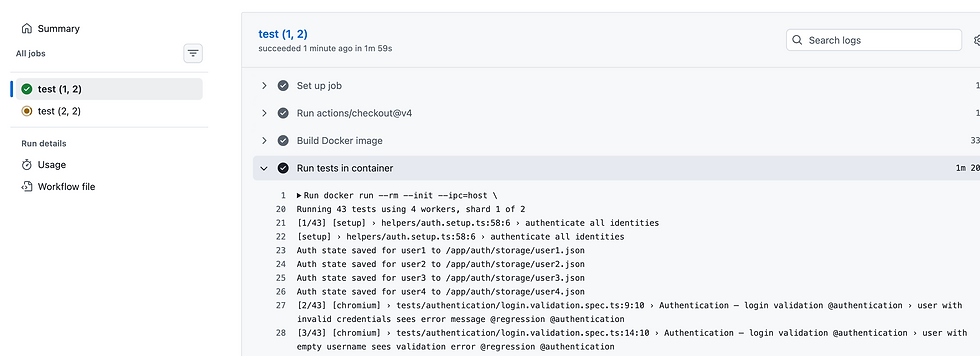
    - name: Run tests in container
      run: |
        docker run --rm --init --ipc=host \
          -e BASE_URL="${{ secrets.BASE_URL }}" \
          -e TEST_USER_1_EMAIL="${{ secrets.TEST_USER_1_EMAIL }}" \
          -e TEST_USER_1_PASSWORD="${{ secrets.TEST_USER_1_PASSWORD }}" \
          -e TEST_USER_2_EMAIL="${{ secrets.TEST_USER_2_EMAIL }}" \
          -e TEST_USER_2_PASSWORD="${{ secrets.TEST_USER_2_PASSWORD }}" \
          -e TEST_USER_3_EMAIL="${{ secrets.TEST_USER_3_EMAIL }}" \
          -e TEST_USER_3_PASSWORD="${{ secrets.TEST_USER_3_PASSWORD }}" \
          -e TEST_USER_4_EMAIL="${{ secrets.TEST_USER_4_EMAIL }}" \
          -e TEST_USER_4_PASSWORD="${{ secrets.TEST_USER_4_PASSWORD }}" \
          -e API_BASE_URL="${{ secrets.API_BASE_URL }}" \
          -e WC_BASE_URL="${{ secrets.WC_BASE_URL }}" \
          -e WC_CONSUMER_KEY="${{ secrets.WC_CONSUMER_KEY }}" \
          -e WC_CONSUMER_SECRET="${{ secrets.WC_CONSUMER_SECRET }}" \
          -v "$(pwd)/blob-report:/app/blob-report" \
          -v "$(pwd)/allure-results:/app/allure-results" \
          qa-cart-tests --shard=${{ matrix.shardIndex }}/${{ matrix.shardTotal }} --workers=4

    - name: Upload blob report
      uses: actions/upload-artifact@v4
      if: ${{ !cancelled() }}
      with:
        name: blob-report-${{ matrix.shardIndex }}
        path: blob-report/
        retention-days: 30

    - name: Upload allure-results
      uses: actions/upload-artifact@v4
      if: ${{ !cancelled() }}
      with:
        name: allure-results-${{ matrix.shardIndex }}
        path: allure-results/
        retention-days: 30

  merge-reports:
    needs: test
    runs-on: ubuntu-latest
    if: ${{ !cancelled() }}
    steps:
      - uses: actions/checkout@v4

      - name: Merge blob reports into one HTML report
        uses: actions/download-artifact@v4
        with:
          pattern: blob-report-*
          merge-multiple: true
          path: all-blob-reports
      - run: npx playwright merge-reports --reporter=html ./all-blob-reports

      - name: Combine allure-results from both shards
        uses: actions/download-artifact@v4
        with:
          pattern: allure-results-*
          merge-multiple: true
          path: allure-results

      - uses: actions/setup-java@v4
        with:
          java-version: '17'
          distribution: 'temurin'
      - run: npm install -g allure-commandline
      - run: allure generate allure-results --clean -o allure-report

      - name: Upload merged Allure report
        uses: actions/upload-artifact@v4
        if: always()
        with:
          name: allure-report
          path: allure-report/
          retention-days: 30
-e flags replace the old Install dependencies and Install Playwright Browsers steps entirely; secrets go straight into the container as environment variables at runtime, the same twelve values Post 8 already had wired up.
The two -v mounts are new here; without them, blob-report/ and allure-results/ only exist inside the container, and the Upload blob report/Upload allure-results steps that come right after would have nothing on the runner's own filesystem to find, the same reasoning as the local run above, just applied to CI.
The sharding matrix from Post 8 stays exactly as it was, --shard still splits the suite the same way, only now inside a container instead of directly on the runner's own Node install.
This is what portability means here: GitHub's hosted runner and your own laptop can now run the identical environment, not two environments that happen to usually agree.
What's next
Everything proven across this post is still tied to one specific place: GitHub's own hosted runners. The portability argument- one image, identical everywhere- has only actually been tested on GitHub Actions itself, never anywhere else. A team running Azure Pipelines instead of GitHub Actions has no evidence yet that this same image behaves the same way there. And GitHub's hosted runners are still a fixed pool; sharding across two of them helped, but scaling past a handful means either paying for larger runners or hitting the account's own concurrency limits, neither of which is a browser-execution problem; both are platform-capacity problems.
The next post checks the portability claim directly, on infrastructure that isn't GitHub's: this same image on Azure Pipelines, Playwright's own CI documentation has a dedicated section for it, containerized and sharded variants included, and on LambdaTest's cloud grid, built specifically for browser execution at a scale no single runner pool offers.
This is Post 9 of the Phase 3: Enterprise Scalability series. Post 1 · Post 2 · Post 3 · Post 4 · Post 5 · Post 6 · Post 7 · Post 8 · Repo link · Course link


