


Part 3 - Master the Basics of TypeScript for Effective Playwright Automation - Loops and Strings

Updated: Apr 15
In the previous post, we covered the core basics of TypeScript, including variables, data types, arrays, objects, operators, and conditional statements. These concepts form the foundation of TypeScript and are essential before writing any real-world code.
In this post, we continue building on that foundation by focusing on two very important topics: loops and string methods. Loops help us repeat actions efficiently, while string methods allow us to work with and manipulate text — both of which are used constantly in real applications and automation scripts.
The goal of this post is to help you understand how repetition and text processing work in TypeScript, using simple examples and clear explanations. We intentionally keep the scope limited so that each concept is easy to grasp, especially for beginners.
By the end of this post, you should feel comfortable using different types of loops and applying common string operations confidently in TypeScript code.
Loops in TypeScript
Loops are used to repeat a block of code until a condition is met. They are essential when working with arrays, lists, test data, and repeated actions.

TypeScript uses the same loop syntax as JavaScript, but adds type safety, which helps prevent logical errors.
1️⃣ for Loop
The for loop is used when you know how many times you want to repeat a block of code.
JavaScript Example
for (let i = 0; i < 3; i++) {
  console.log(i);
}
TypeScript Example
for (let i: number = 0; i < 3; i++) {
  console.log(i);
}
✔ i is guaranteed to be a number✔ Prevents invalid comparisons or updates
2️⃣ Looping Through Arrays
JavaScript Example
let browsers = ["chromium", "firefox", "webkit"];

for (let i = 0; i < browsers.length; i++) {
  console.log(browsers[i]);
}
TypeScript Example
let browsers: string[] = ["chromium", "firefox", "webkit"];

for (let i = 0; i < browsers.length; i++) {
  console.log(browsers[i]);
}
TypeScript ensures that:
browsers[i] is always a string
Mixed data types are not allowed
3️⃣ for...of Loop (Recommended)
The for...of loop is the cleanest and most readable way to loop through arrays.
let browsers: string[] = ["chromium", "firefox", "webkit"];

for (const browser of browsers) {
  console.log(browser);
}
✔ No index handling✔ Safer and cleaner✔ Preferred in modern TypeScript
4️⃣ while Loop
The while loop is used when the number of iterations is not known in advance.
let retries: number = 3;

while (retries > 0) {
  console.log("Retrying...");
  retries--;
}
⚠️ Always ensure the condition eventually becomes false to avoid infinite loops.
5️⃣ do...while Loop
The do...while loop runs at least once, even if the condition is false.
let count: number = 0;

do {
  console.log("Runs at least once");
  count++;
} while (count < 1);
6️⃣ Loop Control Statements
break – Exit the loop
for (let i = 0; i < 5; i++) {
  if (i === 3) {
    break;
  }
  console.log(i);
}
continue – Skip current iteration
for (let i = 0; i < 5; i++) {
  if (i === 2) {
    continue;
  }
  console.log(i);
}
String Functions in TypeScript
Strings are one of the most commonly used data types in any application. Strings include many built-in functions that help you manipulate and analyse text.
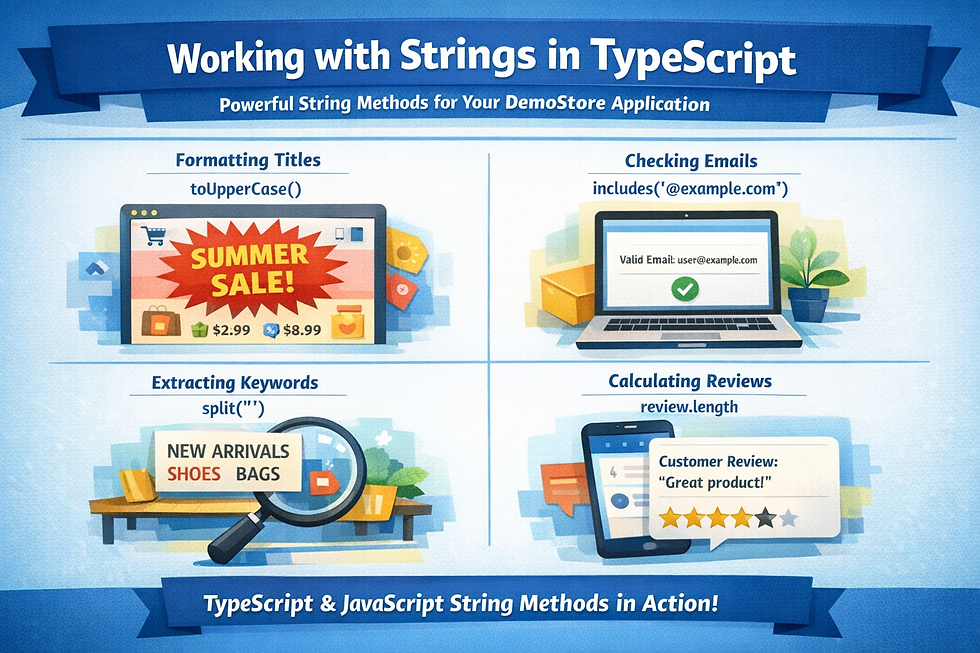
TypeScript uses the same string methods as JavaScript, but with better type safety.
Strings are one of the most commonly used data types in any application.
A string represents text such as:
• product names
• URLs
• error messages
• user inputs
• order confirmation text
String functions help us manipulate, clean, compare, and validate text.
Why Strings are Important in Automation
Let's say we are automating tests for QA Demo Store (qa-cart.com).
During automation, we constantly work with text:

• search for product names
• verify success messages
• check URLs
• extract order IDs
• validate product categories
• compare expected vs actual values
Example scenarios from Demo Store:
Scenario | String usage |
Search product | verify search text appears |
Login validation | check error message text |
Order confirmation | extract order number |
Product title validation | compare expected product name |
URL validation | confirm navigation path |
Category validation | check breadcrumb text |
Without string functions, validating text becomes difficult.
Getting the Length of a String
Used to check text size or content presence.
Verify that the product name is not empty.
let productTitle: string = "Organic Almonds";
console.log(productTitle.length);
Automation use case:
if (productTitle.length > 0) {
   console.log("Product title displayed correctly");
}
Useful for:
• validating product names
• checking error messages exist
• ensuring order id is generated
Changing Case
Helps perform case-insensitive comparisons. Sometimes UI text may be:
"organic almonds"
"Organic Almonds"
"ORGANIC ALMONDS"
We normalize before comparison.
let searchText: string = "Organic Almonds";
console.log(searchText.toUpperCase());
console.log(searchText.toLowerCase());
Automation example:
let expected = "organic almonds";
let actual = "Organic Almonds";
if (actual.toLowerCase() === expected.toLowerCase()) {
   console.log("Product verified");
}
Common use cases:
• validating search results
• comparing category names
• ignoring capitalisation differences
Checking if a String Contains Text
Used when verifying partial text.
Example: Checking whether a URL points to the correct page.
let url: string = "https://qa-cart.com/my-account";
console.log(url.includes("account"));
Automation example:
if(url.includes("checkout")) {
   console.log("User navigated to checkout page");
}
Useful for:
• URL validation
• verifying success message contains expected words
• checking product category text
Extracting Part of a String
Sometimes we only need part of the text.
Example: Extract order ID from message.
Message:"Order #45678 confirmed"
substring()
let orderMessage: string = "Order #45678 confirmed";
console.log(orderMessage.substring(6,11));
Output:
45678slice()
let text: string = "Playwright";
console.log(text.slice(4));
Output:
wrightSupports negative indexes:
console.log(text.slice(-5));Useful for:
• extracting order numbers
• extracting product codes
• parsing URLs
Replacing Text
Used to modify text dynamically.
Example: Cleaning product title.
let product: string = "Organic-Almonds";
console.log(product.replace("-", " "));
Output:
Organic AlmondsAutomation use case:
let actualTitle = "Organic-Almonds";
let formattedTitle = actualTitle.replace("-", " ");
console.log(formattedTitle);
Useful for:
• formatting product names
• cleaning API responses
• normalizing data
Splitting a String
Used when text contains separators like commas, spaces, dash.
Example: Browser list from config.
let browsers: string = "chrome,firefox,webkit";
let browserList = browsers.split(",");
console.log(browserList);
Output:
["chrome","firefox","webkit"]DemoStore example: Splitting product categories.
let categories: string = "Grocery,Fruits,Organic";
let categoryArray = categories.split(",");
Useful for:
• test data processing
• environment variables
• API responses
• tags and categories
Removing Extra Spaces
User input may contain spaces.
Example:
let username: string = "   admin   ";
console.log(username.trim());
Output:
adminAutomation example:
let inputUser = " admin ";
let expectedUser = "admin";if(inputUser.trim() === expectedUser){
   console.log("Valid username");
}
Important for:
• login validation
• form inputs
• API responses
Accessing Characters in a String
Each character has an index.
Index starts from 0.
let word: string = "Test";
console.log(word[0]);console.log(word.charAt(1));
Output:
TeDemoStore example: Checking the first letter of product.
let product = "Organic Honey";
console.log(product[0]);
Useful for:
• validating product codes
• parsing structured text
Template Strings
Template strings allow embedding variables easily.
let product: string = "Organic Almonds";
let price: number = 25;
console.log(`Product ${product} costs ${price}`);
Output:
Product Organic Almonds costs 25Cleaner than:
console.log("Product " + product + " costs " + price);DemoStore example:
let orderId = 45678;
console.log(`Order ${orderId} placed successfully`);
Very useful in:
• logging
• dynamic messages
• test reporting
Using Backslash () in Strings
Backslash is an escape character.
Used to represent special characters.
Escaping Quotes
let message: string = "User said \"Login failed\"";
console.log(message);
Output:
User said "Login failed"New Line (\n) and Tab (\t)
let log: string = "Step1\nStep2\nStep3";
console.log(log);
Output:
Step1
Step2
Step3
Tab example:
let report = "Product:\tOrganic Honey";Backslash in File Paths
let filePath: string = "C:\\Users\\Anuradha\\Downloads";Template Strings Reduce Escaping
let message = `User said "Login failed"`;Cleaner and more readable.
In this post, we focused on loops and string methods in TypeScript, building on the fundamentals learned earlier. You learned how to repeat logic using for, while, and for...of loops, and how to work with strings using common methods such as length, toUpperCase, includes, split, and trim.
These concepts may appear simple, but they are used everywhere — from processing data to controlling program flow. Developing a strong understanding of loops and string manipulation will make your TypeScript code cleaner, more readable, and easier to maintain.
In the next post, we will move on to functions in TypeScript. Functions are a major milestone in learning the language, as they help you organise code, reuse logic, and write scalable programs. Understanding functions will also prepare you for more advanced topics and for using TypeScript effectively in real-world projects and automation frameworks.


